Already have a song you like but want to take it in a new direction? Somio lets you rework an existing track.
With Remixer, you can transform the style, rhythm, or arrangement. Extender lets you continue a song beyond its original ending or from a selected point. Replace Music Section feature lets you rework a specific section while keeping the rest of the song intact.
Whether you want a new genre, a longer ending, or a cleaner version of one section, choose the editing method that matches your goal. This guide explains how each feature works and how to choose the right one for your project.
Choose the Right Music Editing Tool
Not sure which feature you need? Start by deciding how much of your existing song you want to change.
| If you want to... | Choose |
|---|---|
| Give an existing song a new style, rhythm, or arrangement | AI Song Remixer |
| Make a song longer by adding new music after a selected point | AI Music Extender |
| Change or regenerate one specific section of a song | Replace Music Section |
Compare the Features:
| Feature | What It Does | Impact on the original | What You Can Change | Best For |
|---|---|---|---|---|
| AI Music Extender | Continues a song from a selected point with newly generated music | Keeps the original section intact and adds a newly generated section that follows it | Adds new musical sections, such as a verse, chorus, bridge, or outro | Making a short song longer |
| AI Song Remixer | Reimagines an existing song with a new musical direction | Can significantly change the music, while recognizable elements such as the original vocal or melodic foundation may remain | Genre, rhythm, harmony, instrumentation, arrangement, and other musical elements | Creating a new version, such as a genre crossover, club version, or acoustic version. |
| Replace Music Section | Regenerates a selected section based on your new lyrics or musical direction | Only the selected section is regenerated; the rest of the song remains unchanged | Lyrics, vocals, arrangement, or musical direction within the selected section | Fixing, rewriting, or changing one part of a song |
In short: AI Song Remixer changes the musical direction, AI Music Extender adds new music, and the Replace Music Section feature changes a specific section.
AI Music Extender
Continue an existing song from a selected point and create new music that flows naturally from the original track.
Unlike Remix, Extend does not rework the existing section. The original audio stays intact while AI generates a new section from the point you choose.
How to Extend a Song
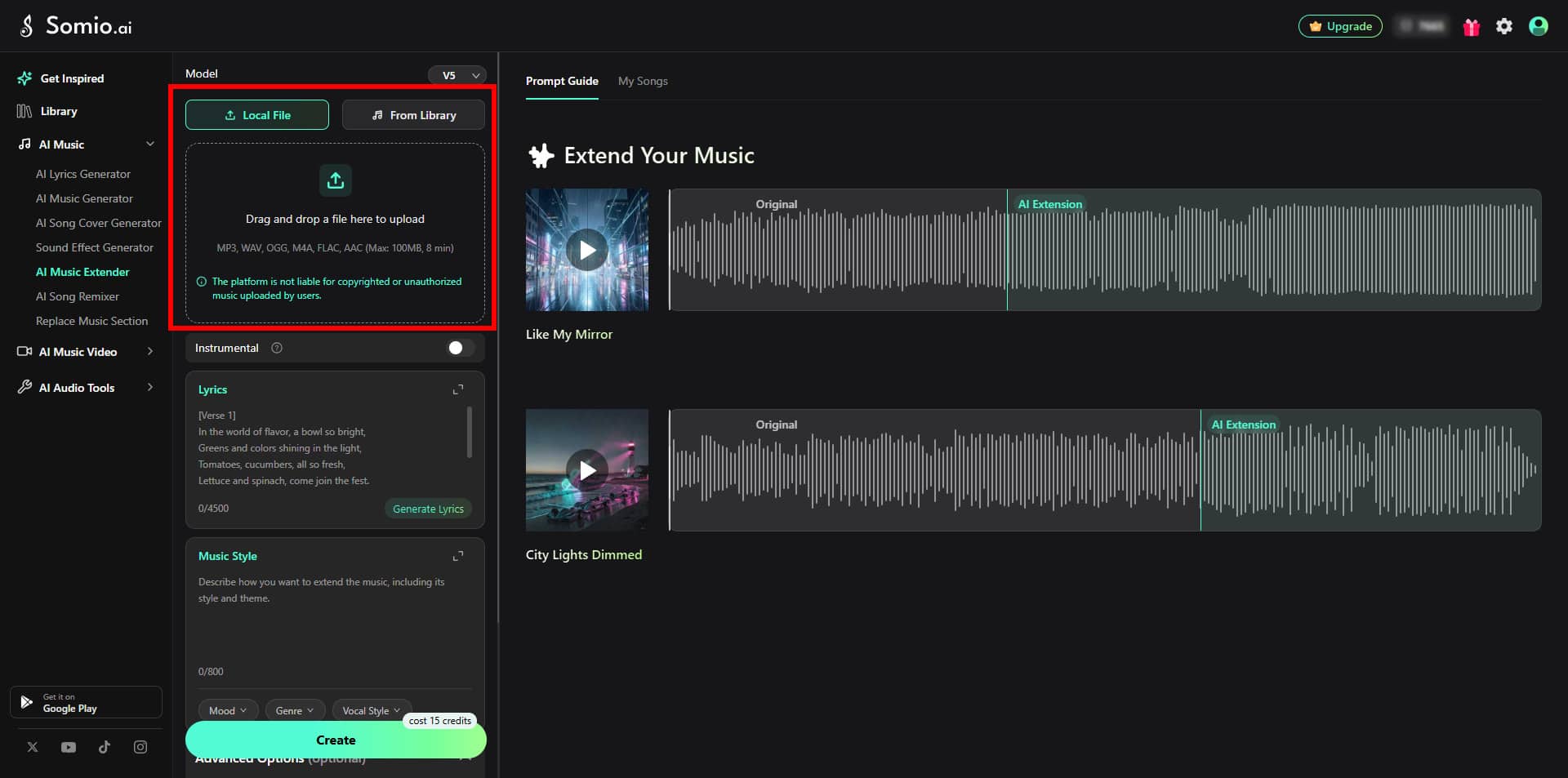
Upload or Select a Song
Choose a source track from:
- Local file: Upload an audio file from your device.
- AI-generated music: Select a song you have already generated in Somio AI music generator.
If you upload a copyrighted recording, make sure you have the appropriate rights or permissions to use it. Somio AI does not take responsibility for the copyright status of music uploaded by users.
Choose Where to Extend
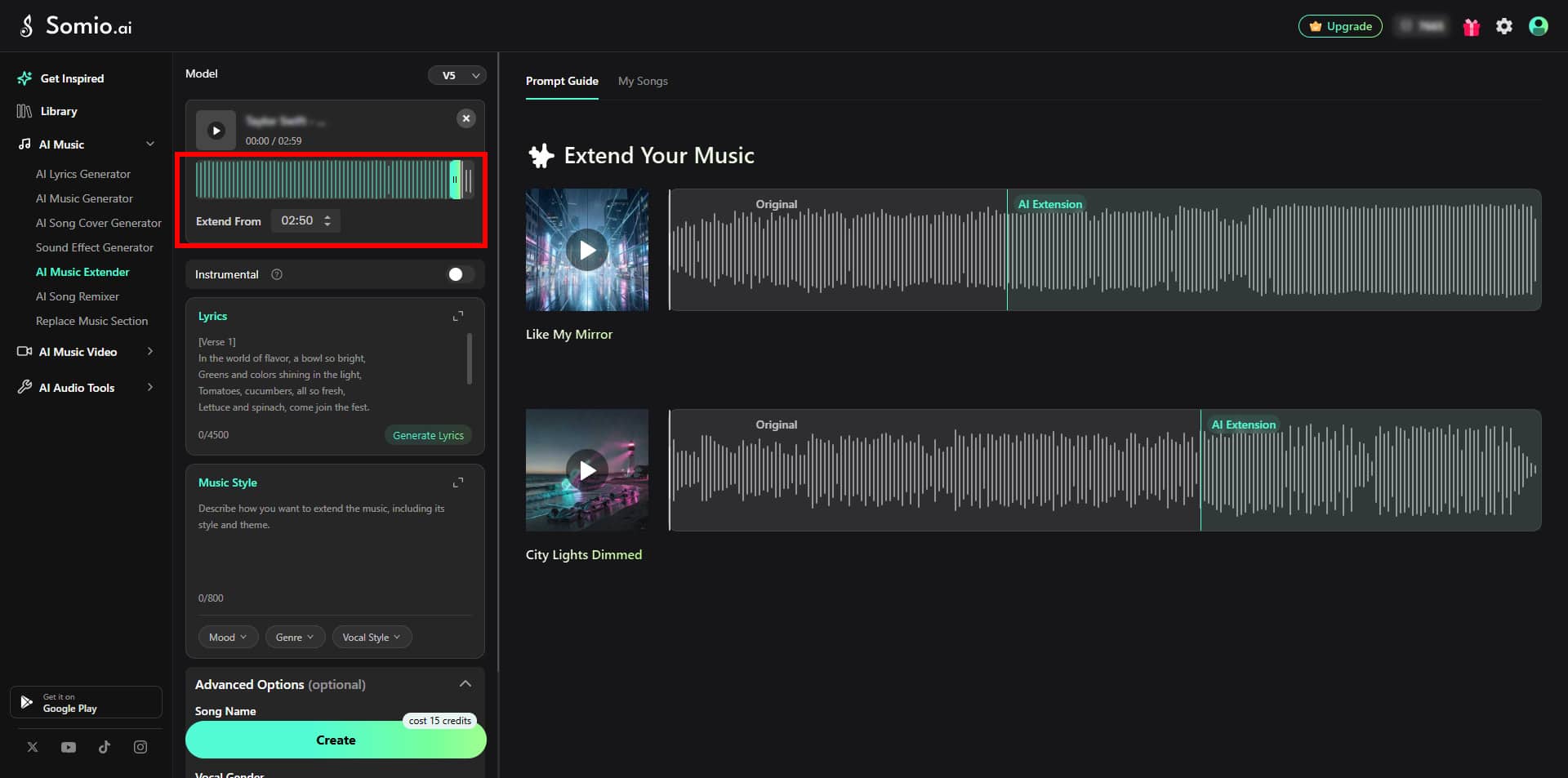
After uploading your song, choose the point where you want the new section to begin.
You can:
- Enter the time manually
- Drag the selection point on the timeline
For a smoother transition, try to select a natural musical boundary, such as the end of a phrase, a short pause, or the beginning of a new bar.
Add Lyrics or Choose Instrumental
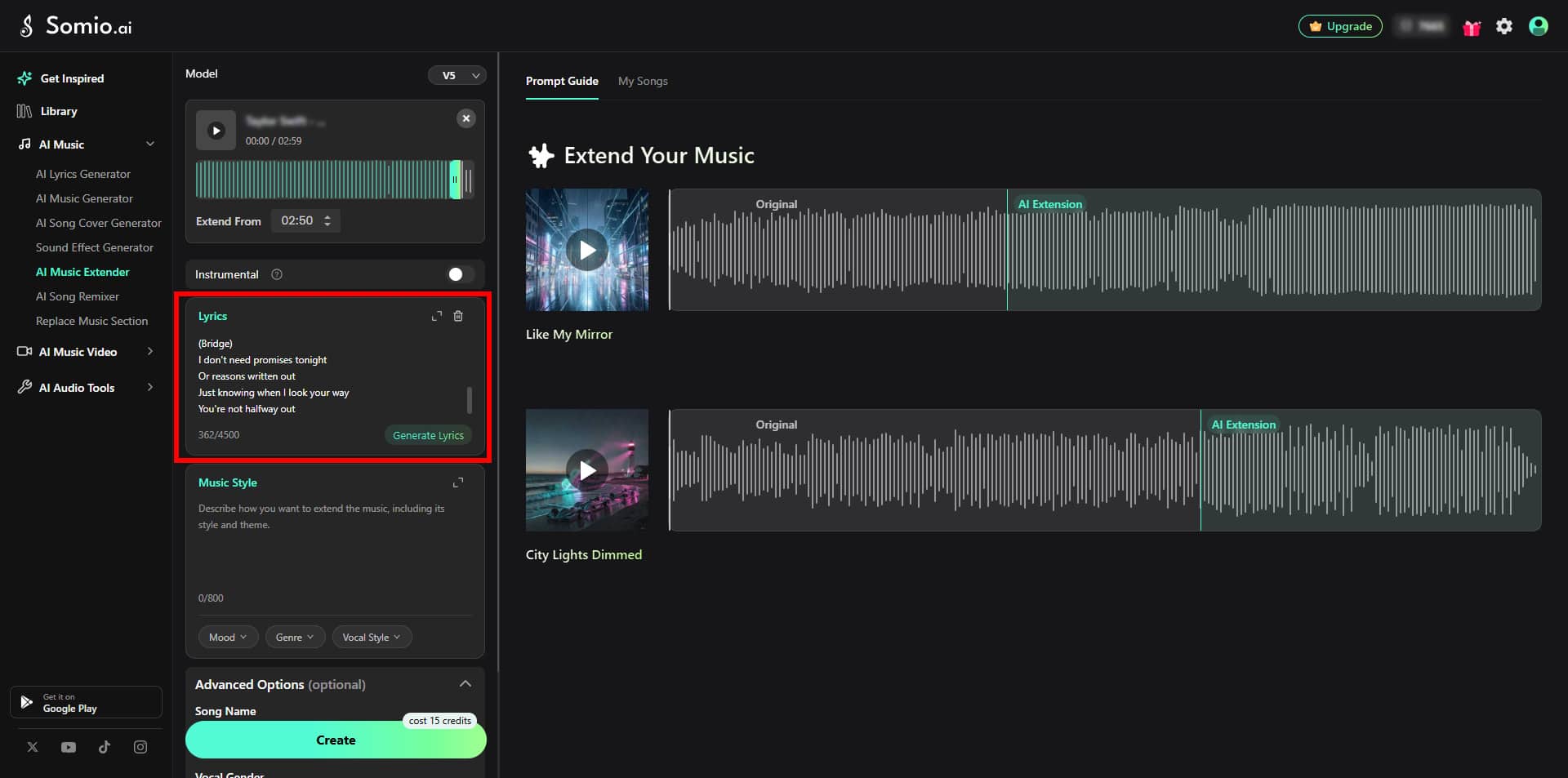
Lyrics are required when you want the new section to include vocals.
If you want the new section to be instrumental, turn on the Instrumental switch instead.
When adding lyrics, use clear structure labels such as [Verse 2], [Chorus], [Bridge], or [Outro] when appropriate.
Describe the Music Style
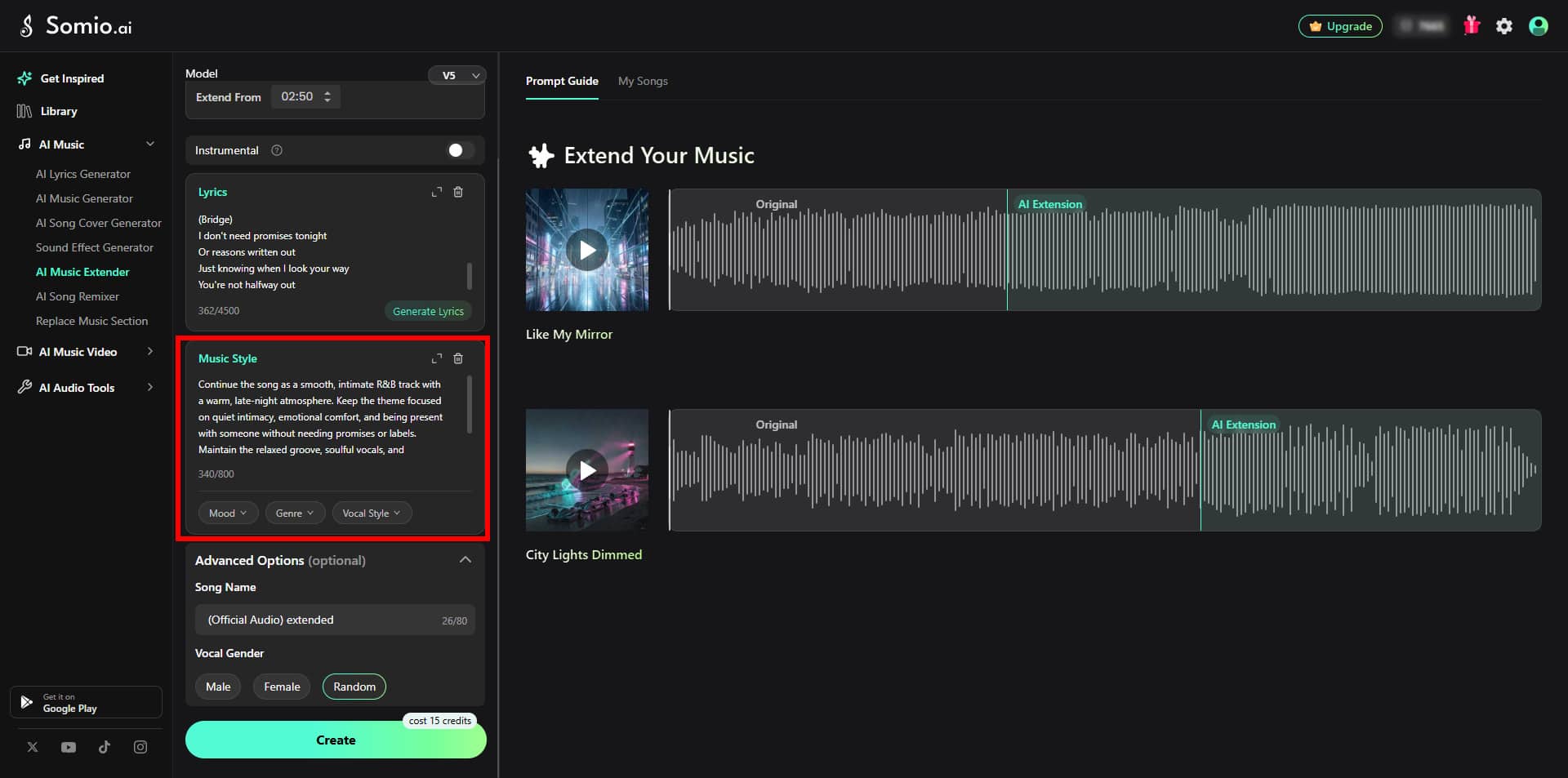
Music Style is required to extend music.
If you want the continuation to closely follow the original song, describe the existing musical characteristics rather than introducing a completely different genre or style.
For example:
If you want to create a more noticeable change, describe the new genre, instruments, rhythm, or mood you want.
However, making the new section too different from the original can make the transition feel disconnected. For a seamless continuation, keep the musical direction reasonably consistent.
Tips for Controlling the Length of an Extension
You cannot set an exact extension length directly, such as “exactly 30 seconds.”
Each Extend generation can create up to around 2 minutes of new audio. The actual duration depends on factors such as the amount of lyrics you provide and the song's tempo.
For a shorter extension:
- Provide fewer lyrics.
- Use [Outro] or [Fade Out] to indicate a short ending.
- Add [End] when you want the song to finish.
For a longer extension:
- Provide a complete new section.
- Use structures such as [Verse 2], [Chorus], or [Bridge].
- Give the AI enough lyrics and musical direction to develop the new section.
Tips for Smoother Extensions
For the best transition, avoid selecting a point in the middle of a sung word or musical phrase.
AI considers musical bars, beats, vocal tails, reverb, and lyric alignment when generating the transition. As a result, the actual transition may shift slightly from the timestamp you selected.
For a smoother result:
- Select a point during a short pause or instrumental section.
- Place the point near the beginning or end of a musical bar.
- Avoid cutting through a sustained vocal or instrument.
- Make sure the first lyric of the new section fits naturally with the selected musical point.
AI Song Remixer
Give an existing song a new musical identity by changing its style, rhythm, arrangement, or instrumentation while keeping recognizable elements of the original.
What Can You Create with AI Song Remixer
AI Song Remixer can reshape an existing track in different musical directions, from changing its genre and rhythm to reworking its instrumentation and arrangement. Here are some common ways to use it:
- Genre crossover remix: Change the musical style of a song, such as turning pop into EDM or rock into jazz.
- Club or dance remix: Increase the energy with a stronger beat, faster tempo, drops, and extended sections to create a more dance-focused version.
- Speed or rhythm remix: Create versions such as Sped Up, Slowed + Reverb, or other rhythm-focused variations.
- VIP Remix: Give an existing track a fresh production with new synths, drops, bass, drums, or other production elements.
- Acoustic or stripped remix: Remove heavier electronic or rock elements and use piano, acoustic guitar, or other minimal instrumentation.
- Extended or dub remix: Expand sections such as the intro, hook, or outro, or create a version with reduced or removed lead vocals.
AI Remix Example:
Original Track (Before)
Remixed Track (After - Energetic EDM Style)
How to Remix a Song
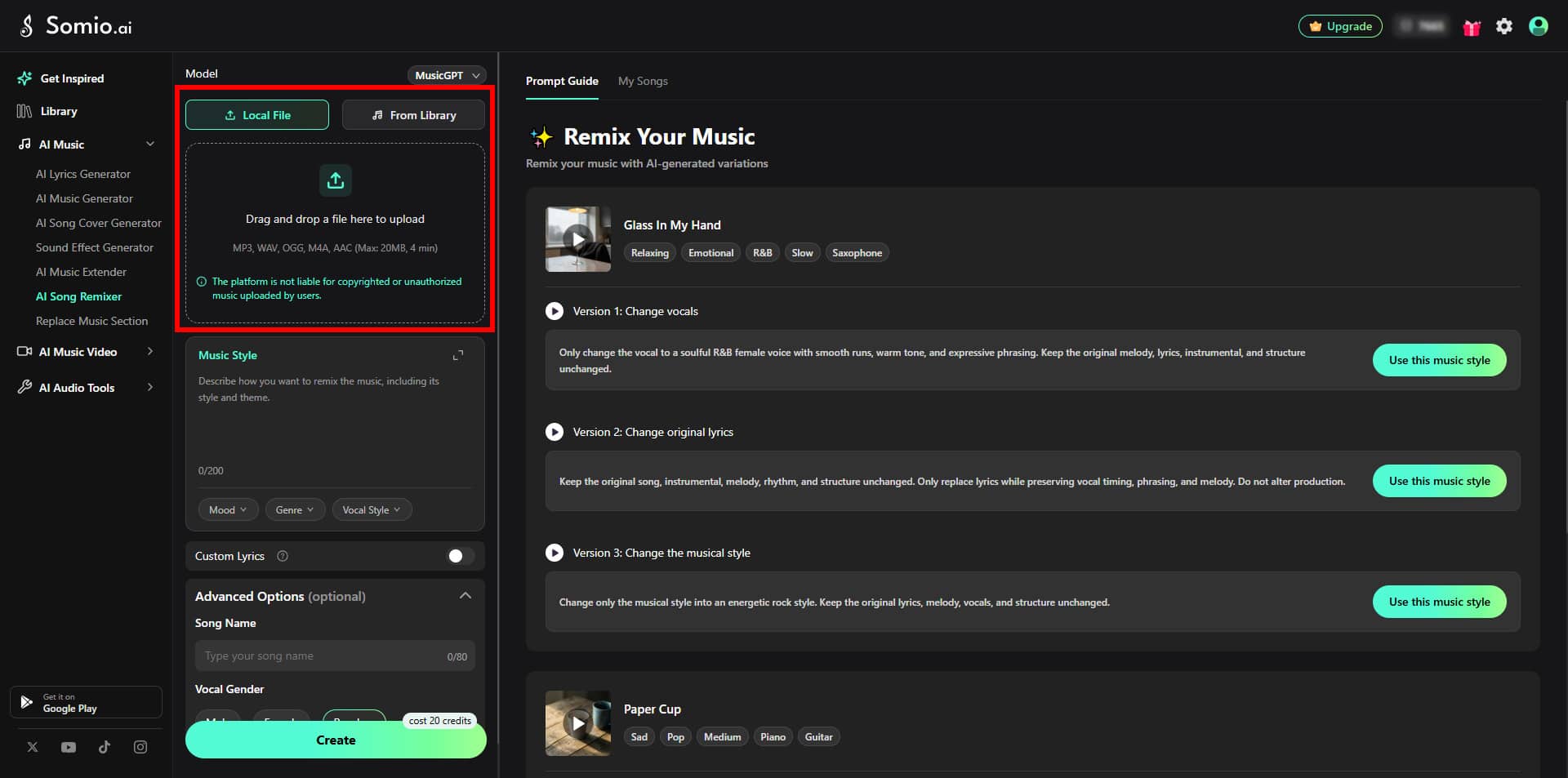
Upload or Select a Song
Choose one of two ways to add your source track:
- Upload a local file: Upload an audio file from your device. This option requires 20 Credits because Remix requires additional processing.
- Choose AI-generated music: Select a song you have already generated in Somio.
If you upload a copyrighted recording, make sure you have the appropriate rights or permissions to use it. Somio AI does not take responsibility for the copyright status of music uploaded by users.
Describe Your Remix Style
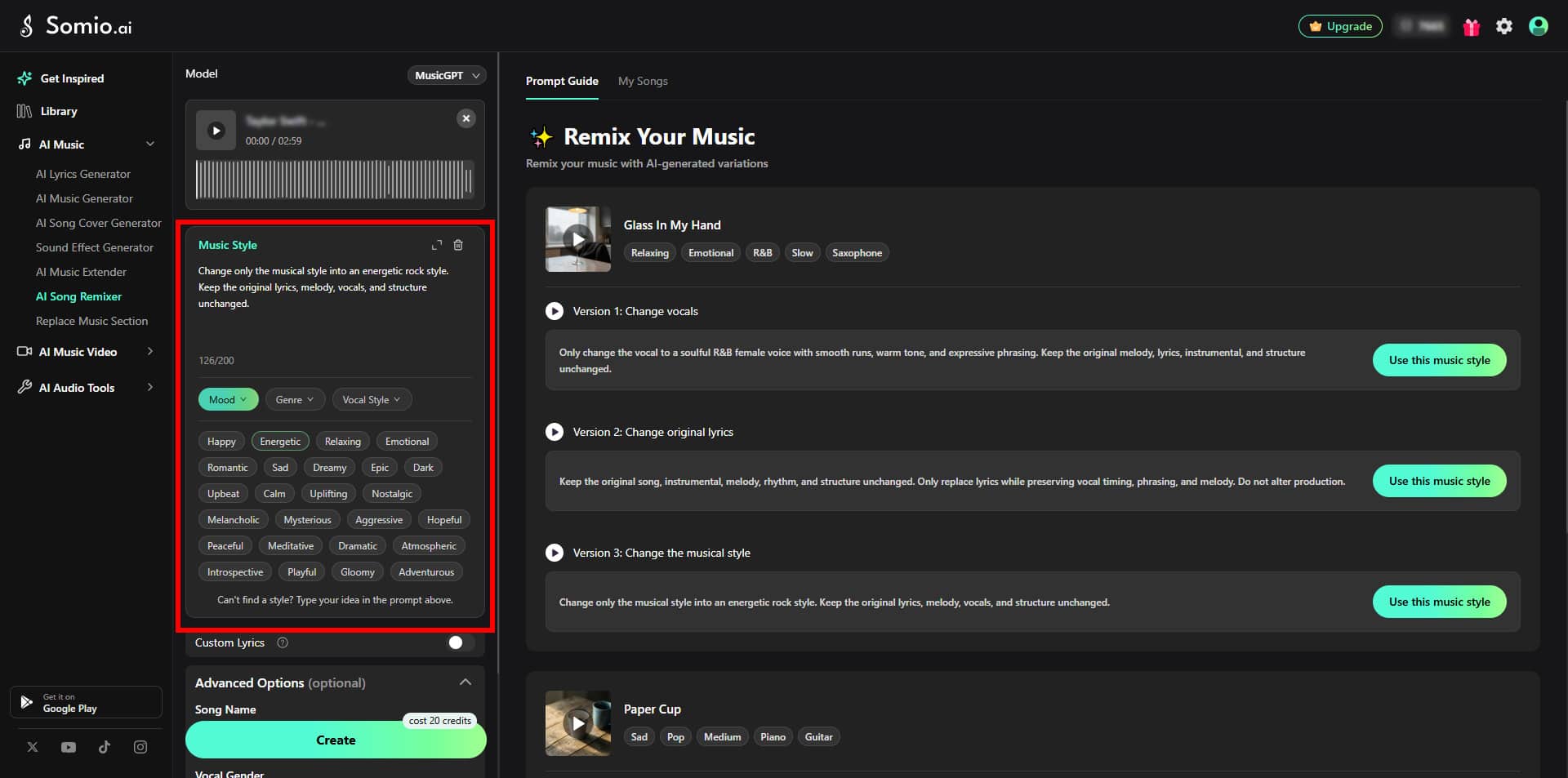
Enter the direction you want in Music Style.
Be specific about the elements you want to change or preserve. You can mention the genre, BPM, instruments, rhythm, vocal type, arrangement, and other musical characteristics.
However, AI generation cannot guarantee a 100% identical reproduction of the original recording. If similarity is important, describe the original musical characteristics as clearly as possible.
For example, if you want to keep the original musical structure while changing the vocal style:
If you do not know the exact details of the original track, you can describe the result you want more generally:
Add Custom Lyrics When Needed
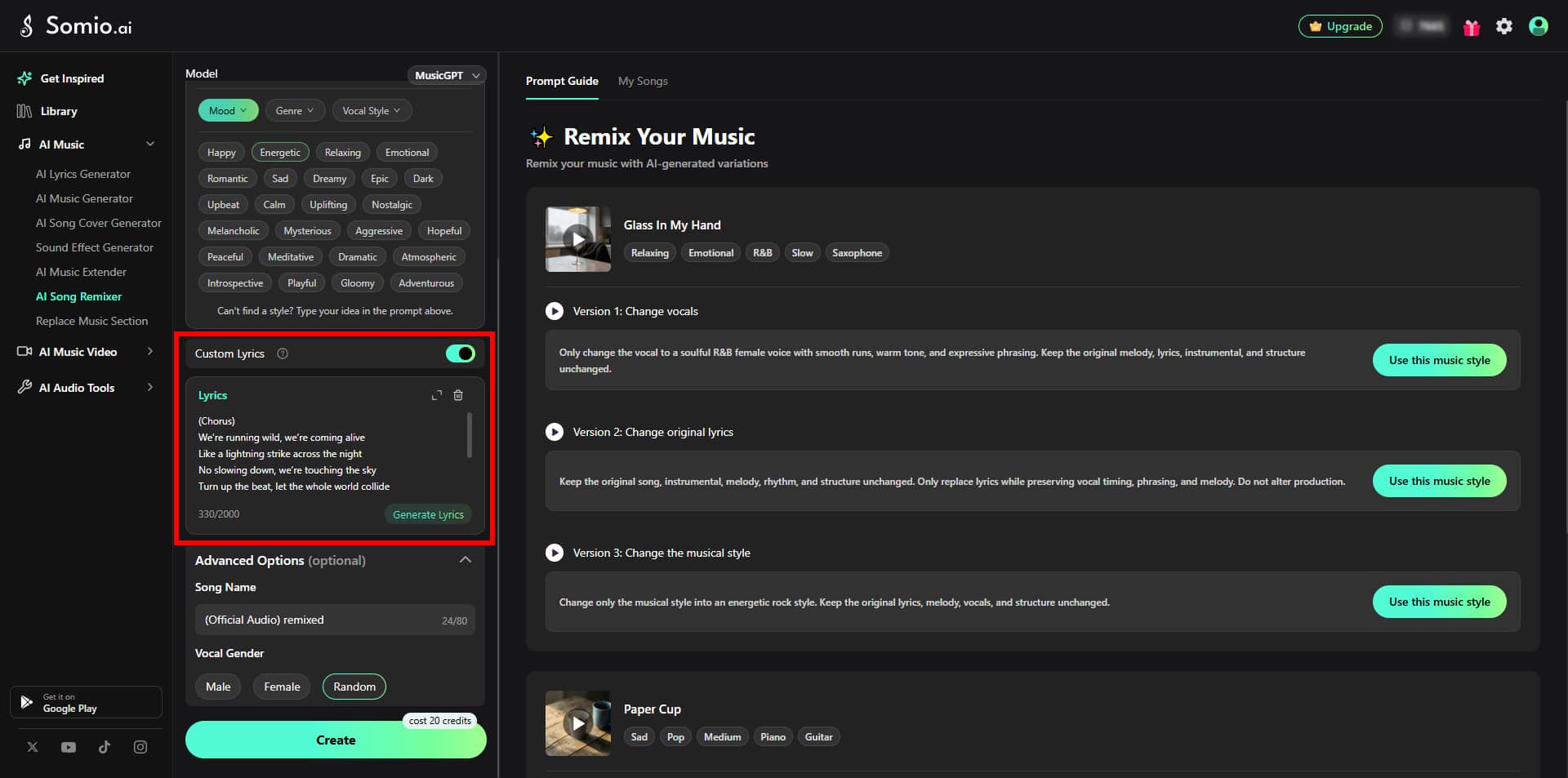
Use Custom Lyrics when you want to change the lyrics during the remix.
For the most reliable vocal alignment, we strongly recommend entering the complete lyrics, including the parts you do not want to change.
Somio AI processes the lyrics as a sequence from beginning to end. If you provide only the lines you want to change, it may have less context for the song's timing and structure, which can result in missing lyrics, misplaced vocals, or unclear pronunciation.
Tips for Custom Lyrics:
Use section labels
Add labels such as [Verse], [Chorus], [Bridge], and [Outro] to make the song structure clearer.
Keep natural line breaks
Line breaks and spacing can affect phrasing, breathing, and rhythmic delivery. Keep your lyrics formatted naturally.
Keep the language and rhythm consistent
If you are replacing only part of the lyrics, try to keep the new lyrics similar to the original in language, rhythm, and syllable count. Large differences can make the vocal delivery less natural.
Remix vs. Mastering
Somio currently offers Remix, not a dedicated Mastering feature. If you're comparing the two, Remix is used to create a new version of a song, while Mastering is the process of polishing the sound of a finished mix.
| Remix | Mastering | |
|---|---|---|
| Main purpose | Create a new version of the music | Polish the final mix |
| Melody & structure | May change | Stay unchanged |
| Arrangement | Can change | Stays unchanged |
| Instrumentation | Can change | Stays unchanged |
| EQ & dynamics | May change as part of the new production | Specifically optimized |
| Overall result | A new musical version | A polished version of the same mix |
In short, Remix changes how the song is made, while Mastering improves how the finished mix sounds.
Replace Music Section
Replace is designed for localized changes to an existing song. Instead of regenerating the entire track, you can select a specific section and create a new version while keeping the rest of the song intact.
What Can You Create with the Replace Feature
You can use Replace to:
- Change lyrics: Replace a few lines or an entire section with new lyrics.
- Change vocals: Try a different vocal style or regenerate the vocals in the selected section.
- Rework the arrangement: Change the instrumentation or arrangement of a chorus, verse, or other section.
- Try a different musical direction: Give one part of a song a different style while keeping the rest of the track unchanged.
- Fix a problematic section: Regenerate a section that does not sound quite right without starting over with the whole song.
Replace Music Section Example:
Original Track (Before)
Replaced Track (After - Change Original Lyrics)
How to Replace a Section of a Song
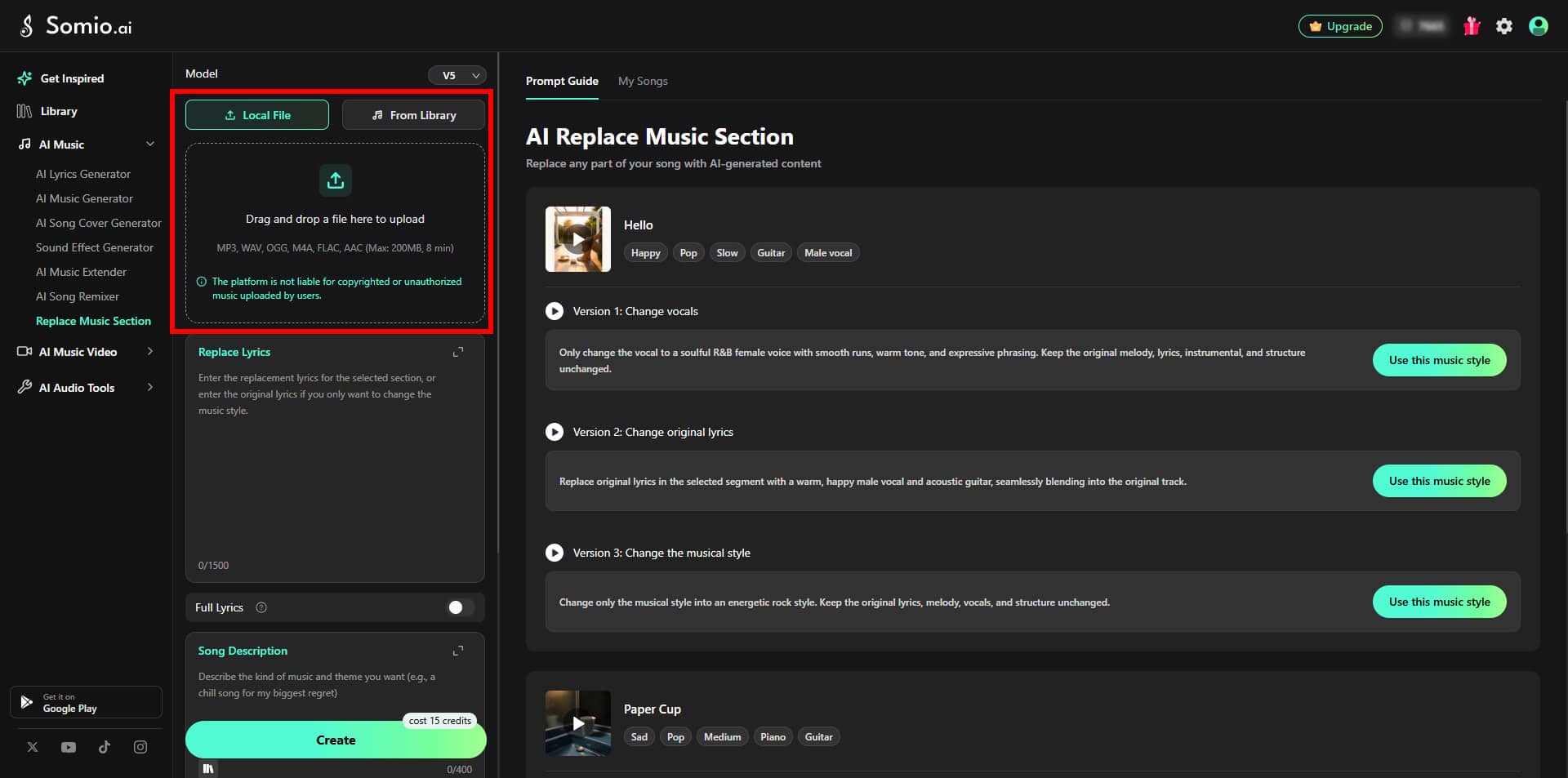
Upload or Select a Song
Choose a source track from:
- Local file: Upload an audio file from your device.
- AI-generated music: Select a song you have already generated in Somio AI music generator.
If you upload a copyrighted recording, make sure you have the appropriate rights or permissions to use it. Somio AI does not take responsibility for the copyright status of music uploaded by users.
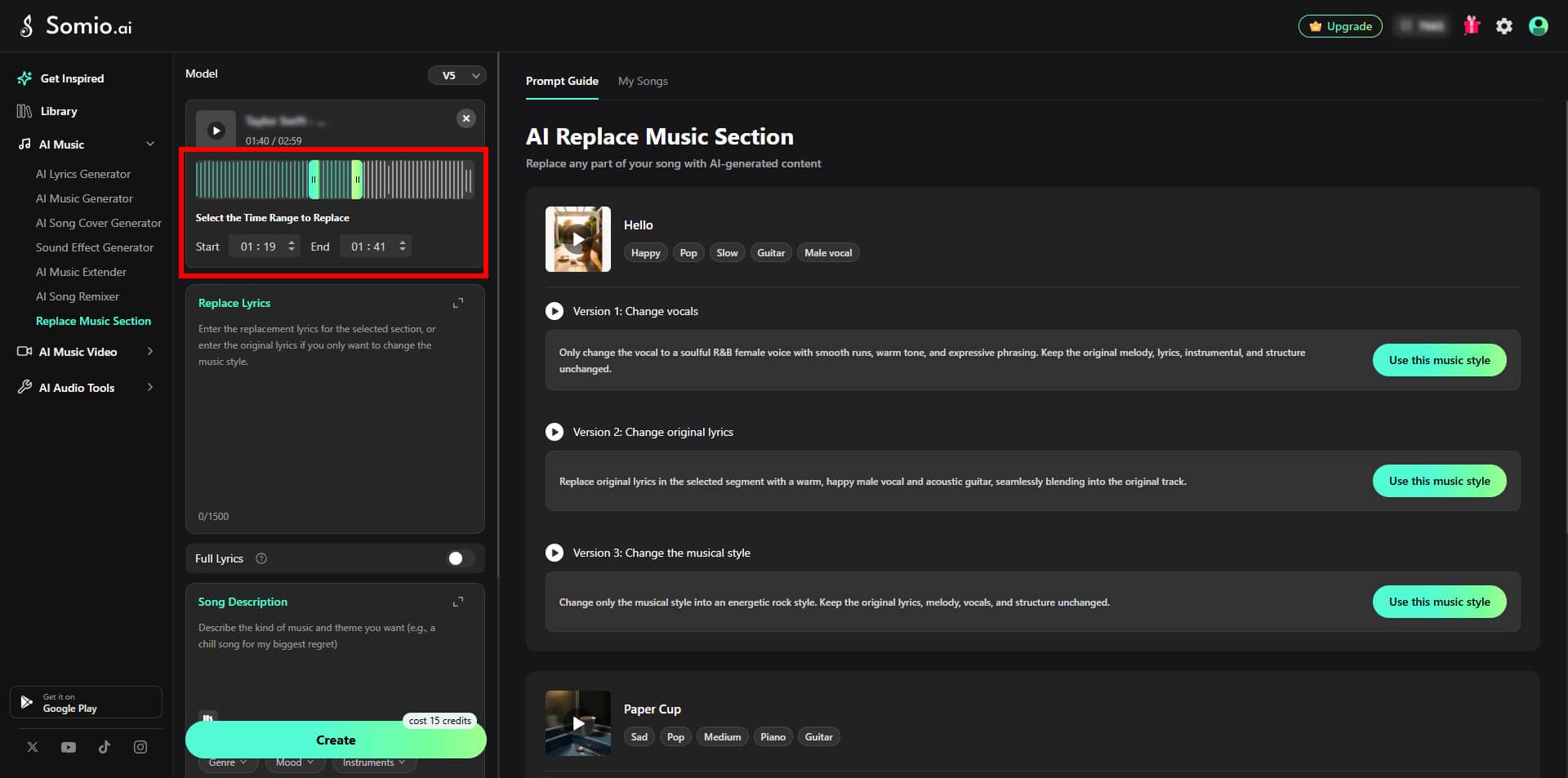
Select the Section to Replace
Choose where the replacement should begin.
You can:
- Enter the time manually.
- Drag the selection point on the timeline.
For a smoother transition, choose a natural point in the song, such as the beginning of a verse, chorus, or musical phrase. Avoid starting in the middle of a word or vocal phrase when possible.
Enter the Replacement Lyrics
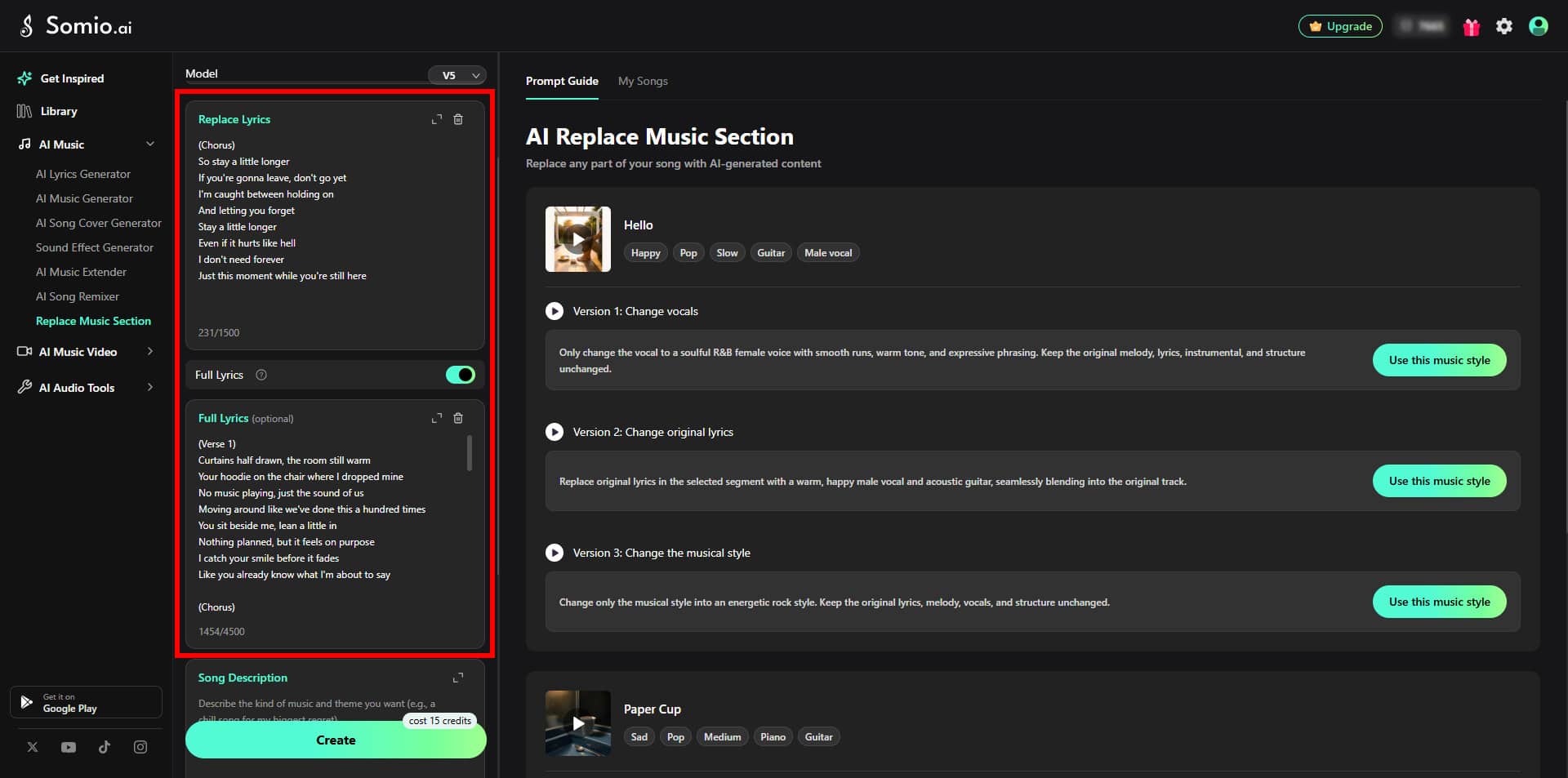
Replacement Lyrics are required for every generation.
- If you want to change the lyrics, enter the new lyrics you want the AI to sing in the replacement section.
- If you want to change the musical style while keeping the original lyrics, simply enter the original lyrics in the replacement section.
For the most reliable vocal timing and pronunciation, we strongly recommend turning on Full Lyrics and providing the complete song lyrics.
Why Do I Need Lyrics If I Only Want to Change the Style?
The AI uses the lyrics to understand where each syllable and phrase should align with the music.
If you only want to change the style or instrumentation, provide the original lyrics. This gives the AI the vocal and timing context it needs while allowing it to create a different musical direction.
Why Should I Use Full Lyrics?
Providing only the few lines you want to change can make it harder for the AI to understand the timing and structure of the entire song. This may result in off-beat vocals, missing words, or unclear pronunciation.
For the best results:
- Turn on Full Lyrics.
- Paste the complete lyrics with your desired changes already made.
If you select a song directly from Library, Somio AI can automatically retrieve the song's Full Lyrics, so you do not need to enter them manually.
Describe the Musical Direction
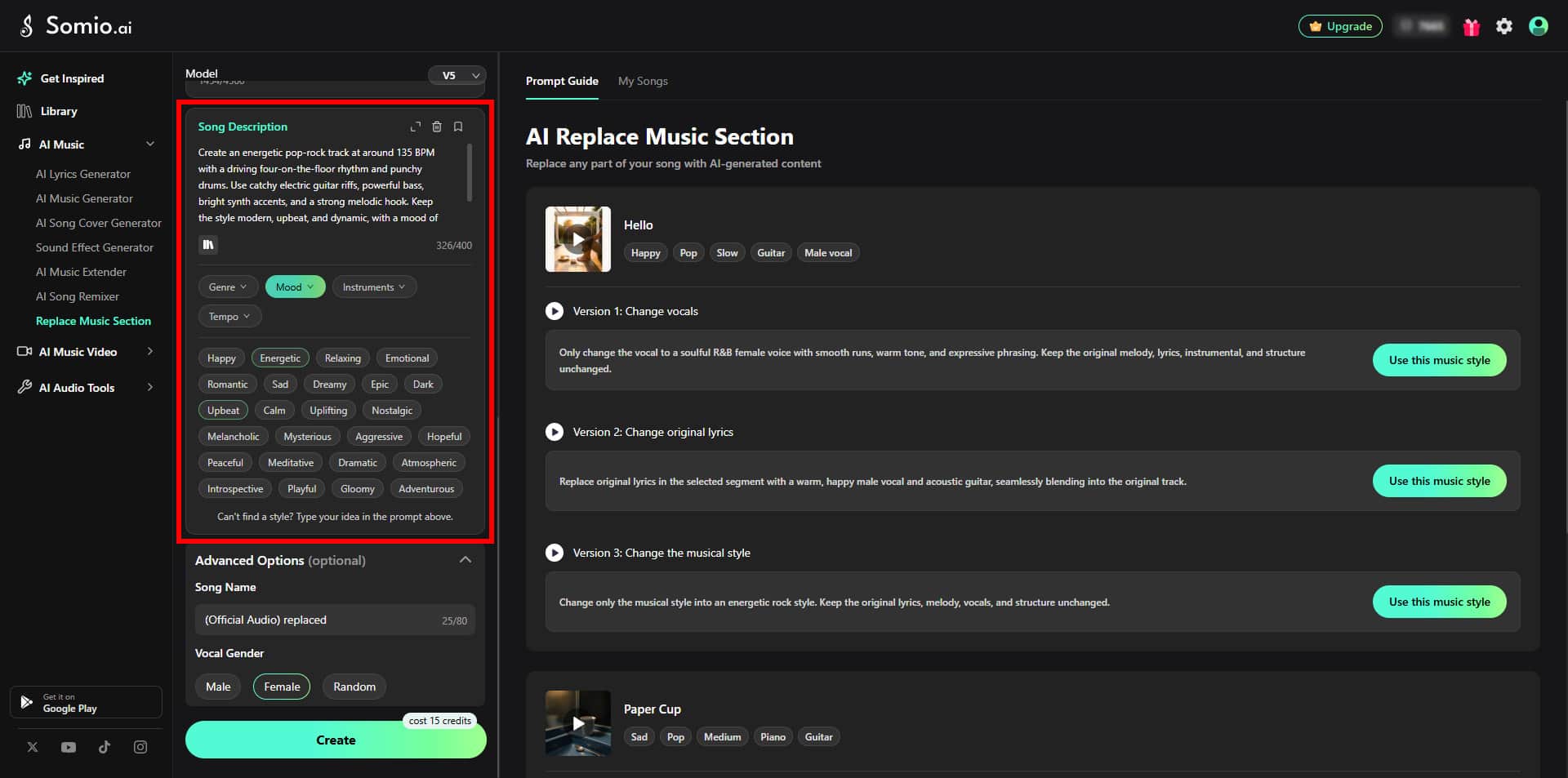
Song Description is required.
Describe what you want the replacement section to sound like, including the genre, instrumentation, rhythm, vocal style, or other characteristics you want to change.
Useful details include:
- Tempo or BPM
- Rhythm
- Melody
- Instruments
- Arrangement
- Vocal type
- Musical style
- Overall mood
If you want to keep the original musical direction while changing the lyrics, you can use a prompt such as:
If you want a more noticeable change, describe the new musical characteristics clearly, you can use a prompt such as:
Different Ways to Use Replace Music Section
Change the style, keep the lyrics
Enter the original lyrics in Replace Lyrics, then describe the new musical direction in Song Description.
For example:
Change part of the lyrics
Enter the new lyrics for the section you want to change. For better alignment, turn on Full Lyrics and include the complete song lyrics with your updated lines.
Change both the lyrics and musical style
Provide the updated lyrics and describe the new musical direction in Song Description.
FAQs
- Can I choose the exact length of an extend?
You can't set an exact duration such as 15 or 30 seconds. Each Extend generation can create up to around 2 minutes of new music, while the actual length depends on the amount of lyrics and the song's BPM.
To make a shorter extension, use fewer lyrics, such as one or two lines, and add a structure tag like [Outro], [Fade Out], or [End].
For a longer extension, provide enough lyrics for a complete section, such as [Verse 2], [Chorus], or [Bridge].
- Why doesn't my extend start exactly where I selected?
The selected time is a starting point rather than a guaranteed cut-in position. AI may slightly adjust the transition to better match the song's rhythm, musical bars, vocal timing, and natural audio tails.
If the selected point falls in the middle of a beat, bar, sustained vocal, or instrumental phrase, the transition may shift slightly to create a more natural continuation.
- Why doesn't my Remix sound exactly like the original song?
Remix creates a new version of your song rather than making an exact copy, so some differences are normal.
When you Remix a song with vocals, the AI automatically extracts and uses the original vocal characteristics as part of its audio analysis. Because of this, the original voice can continue to influence the generated result.
For example, if the original song has a male vocal and you ask for a female lead vocal in your prompt, the AI may still retain characteristics of the original male voice. This can result in a male and female duet or additional backing vocals instead of completely replacing the original voice.
If you want to change the vocalist more clearly, use Stem Splitter to separate the original vocals from the instrumental first. Then upload the instrumental track to Remix and describe the vocal style you want.
The same prompt can also produce slightly different results between generations because AI generation involves randomness. If the result is not what you expected, try generating again or refine details such as the BPM, rhythm, or instrument emphasis in your prompt.
- Why did Remix change more of my song than I expected?
Remix can change the overall musical direction of a song. Specific style or genre words such as R&B, Jazz, or Synthpop may affect more than the part you had in mind, including the arrangement, rhythm, and instrumentation.
If you want to keep the original sound as close as possible, avoid adding unrelated genre terms. Instead, describe specific musical characteristics, such as:
Acoustic guitar, 90 BPM. Keep the original melody and rhythm as close as possible.If you only want to change one specific section of the song, Replace may be a better fit.
- Why are my lyrics or vocals not aligned correctly after Remix?
When you use Custom Lyrics, the AI uses the lyrics to understand the song's structure, timing, and vocal phrasing. If you only provide part of the lyrics, it may not have enough information to align the new vocals with the rest of the song.
This can cause missing lyrics, unclear pronunciation, or changes in the vocal melody. For better results, enter the complete lyrics and organize them with structure tags such as [Verse] and [Chorus].
- Why doesn't my replacement start exactly where I selected?
The selected time is used as a reference, but the AI may slightly adjust the replacement point to match the song's beats, vocal timing, and natural audio tails.
For example, if the selection starts in the middle of a beat, word, or vocal tail, the AI may move the transition to a more suitable musical point. This helps the replacement fit more naturally with the surrounding music.
For a smoother transition, select a clear phrase boundary or downbeat and avoid cutting in the middle of an active vocal phrase. You can also start the selection about 1–2 seconds before the part you want to replace to give the AI more musical context.
- Why do my new lyrics sound off or get skipped in Replace?
If you only provide a few replacement lines without the full song lyrics, the AI may have less context for understanding the song's timing and structure. This can lead to off-beat vocals, missing words, or unclear pronunciation.
For better results:
Turn on Full Lyrics.
Enter the complete lyrics of the song.
Keep structure tags such as [Verse], [Chorus], and [Bridge].
Replace the lines you want to change while keeping the rest of the lyrics unchanged.
Remix, Extend & Replace Feature General Questions
- Why did my generation fail?
There are several possible reasons:
Your prompt or lyrics may contain restricted content.
Singer names, famous song titles, or certain sensitive terms may trigger safety or copyright checks. Instead of naming a specific singer, describe the musical characteristics you want, such as the genre, vocal style, instruments, or rhythm.
Your lyrics or prompt may be difficult for the AI to parse.
Too many special symbols, dense formatting, or excessive text can sometimes cause generation problems. Try simplifying your input and using standard structure tags such as [Verse] and [Chorus].
Your uploaded audio may not meet the requirements.
When uploading an audio file, very large files, unusual formats, or files shorter than 5 seconds may cause processing to fail. For better results, try a standard MP3 file around 30 seconds to 2 minutes long.
The system may be busy.
During periods of high usage, generation may take longer or fail to respond. Wait about 1–2 minutes, then refresh the page and try again. Failed generations normally do not consume your Credits, or the Credits are returned automatically.